Monitor groups and client reports
Group monitors by client or site, see one colour for the whole group, and share a branded report.
Monitor groups let you bundle related monitors together — everything for one client, one site, or one environment — and see a single colour that tells you whether that whole set is healthy. You can also share a branded, read-only report with the client it belongs to, without giving them a login.
Groups are available on the Business and MSP plans.
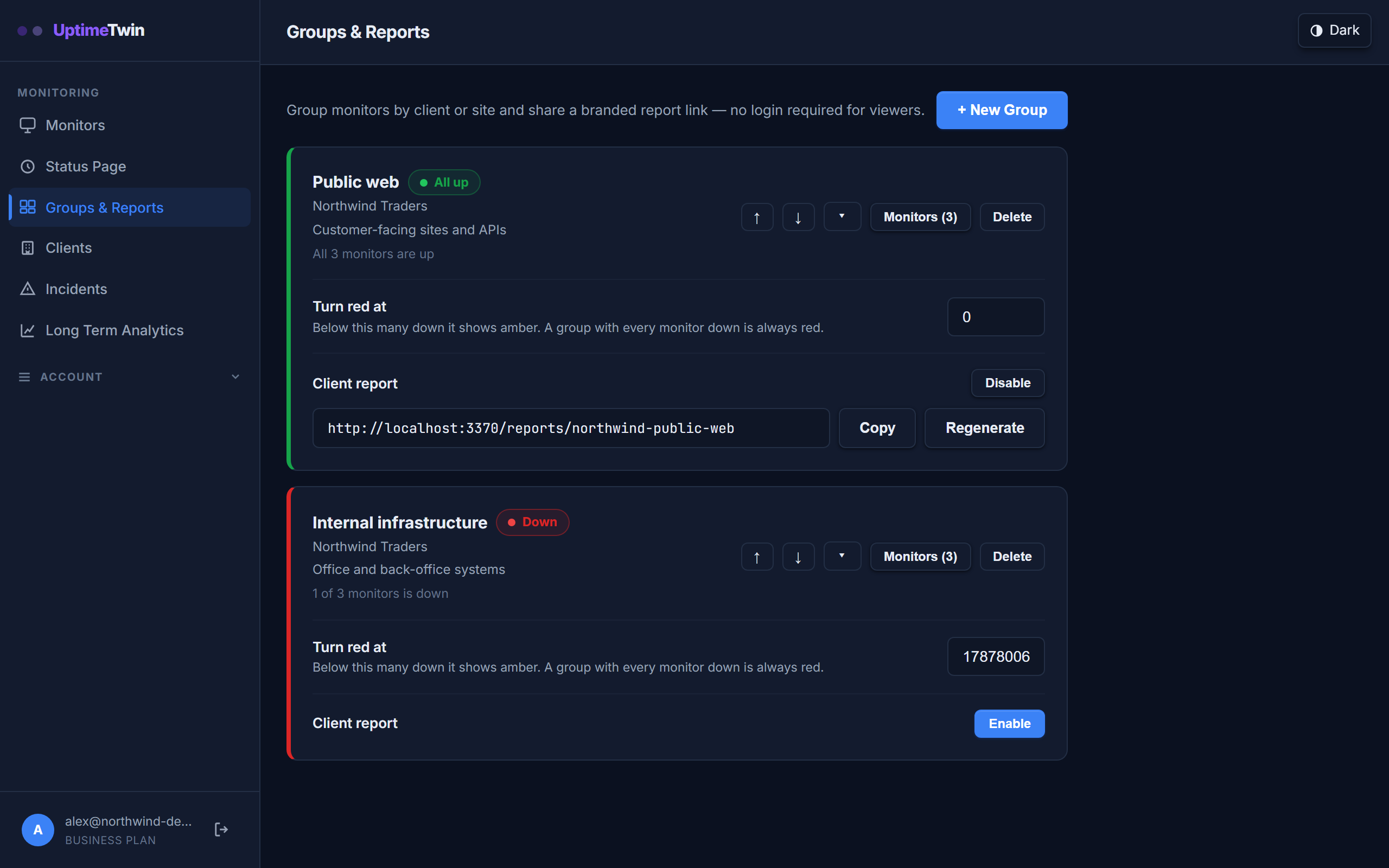 A group takes the colour of its worst member, so one glance tells you which set of
things needs attention.
A group takes the colour of its worst member, so one glance tells you which set of
things needs attention.
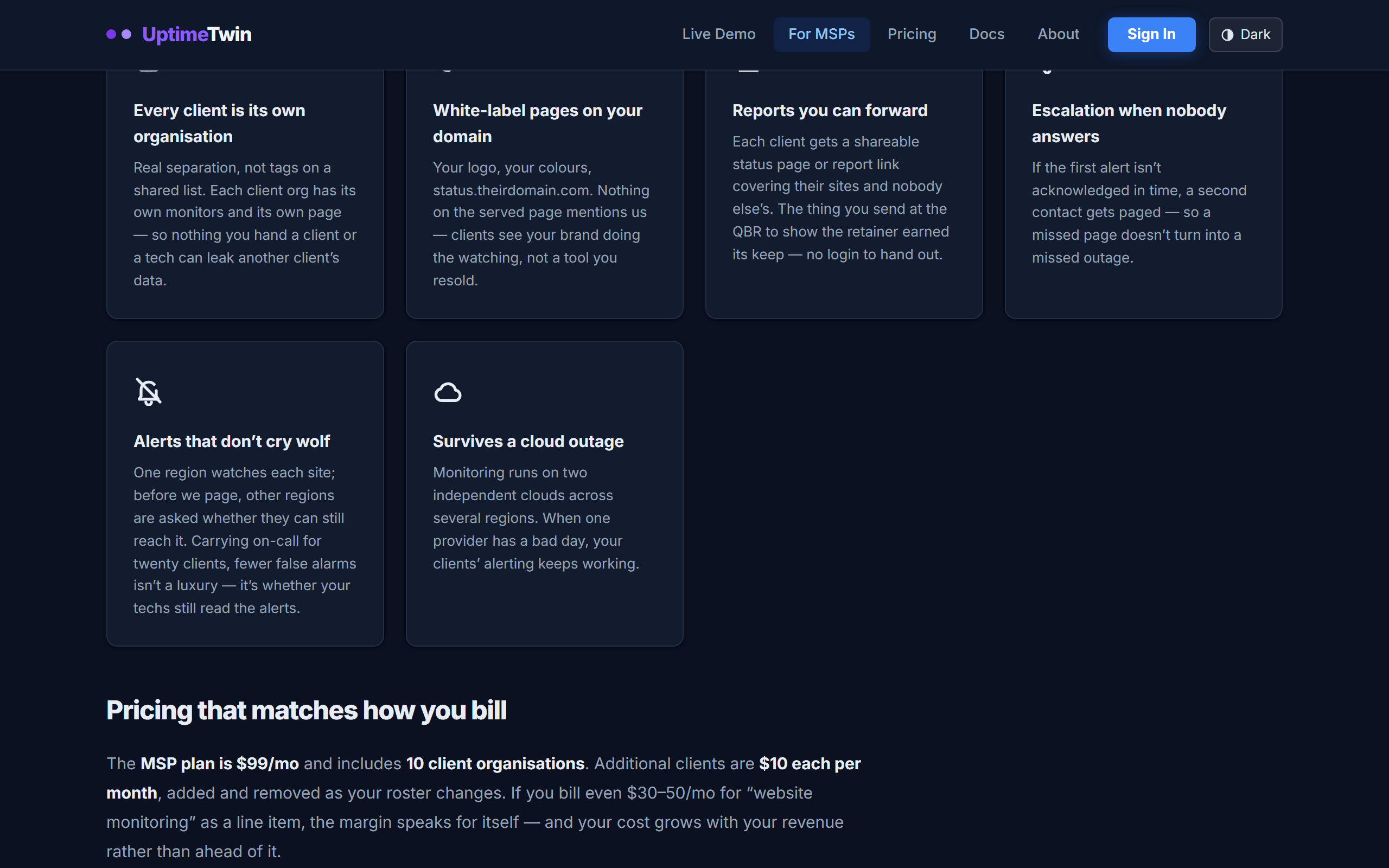 What the MSP plan adds on top of groups — see the MSP overview.
Creating a group
Go to Groups & Reports in the sidebar and choose New Group. You'll be asked for:
- Group name — what you'll see on your dashboard, e.g. "Acme Corp sites".
- Client name (optional) — shown as the heading on the shared report.
- Description (optional) — a short note, e.g. "Production web tier, EU".
Once the group exists, open Monitors on it and tick the monitors you want in it. A monitor can belong to more than one group, and adding it to a group doesn't change how it's checked or alerted.
What the colours mean
Each group shows one colour that rolls up every active monitor in it:
| Colour | What it means |
|---|---|
| Green — All up | Nothing in the group is down. |
| Amber — Degraded | Something is down, but not enough to hit your red threshold. |
| Red — Down | Your red threshold has been reached, or every monitor in the group is down. |
By default a group turns amber when 1 or 2 monitors are down, and red at 3 or more.
A group where every monitor is down is always red, even if that's only one or two monitors. A two-monitor group with both monitors down is a complete outage for that client, and it would be misleading to show it as merely degraded.
Green always means nothing is down. There's no setting that lets a group show green while a monitor in it is failing.
Changing when a group turns red
Bigger groups often want a higher bar. Use Turn red at on the group to set how
many monitors must be down before it goes red — for example, set it to 5 on a
40-monitor group so a couple of blips stay amber.
The minimum is 2, because 1 monitor down in a 1-monitor group is already covered by the "everything is down" rule above.
Paused monitors
Paused monitors are listed in the group but don't count toward the colour. A paused monitor isn't failing, so it can't push a group to amber or red — and it can't make a group look like a total outage either. You'll see how many are paused underneath the group name.
Ordering and tidying
Use the ↑ / ↓ buttons to put your most important groups at the top; the order is saved to your account. Use the ▸ / ▾ button to collapse a group you don't need to look at often. Both are per-account, so they follow you between devices.
Sharing a client report
Turn on Client report for a group and you'll get a link like
https://uptimetwin.com/reports/xxxxxxxx. Anyone with that link can see the
report — there's no login — so treat it as semi-private and only share it with
that client.
The report shows:
- Your client's name and, if you've set them, your logo and accent colour
- The same group colour you see on your dashboard
- Each monitor's current status and uptime over its recent checks
The colour on the report is calculated the same way as the one on your dashboard, so you and your client are always looking at the same answer.
If a link is ever shared further than you intended, use Regenerate on the group. That immediately invalidates the old link and issues a new one.
Paused monitors are hidden from the client report entirely.
Get started
Related
Last updated 2026-07-28