Analytics & reports
Response-time trends, uptime history, and CSV export.
Analytics turn your monitors' raw checks into trends you can act on — how fast your services respond over time, how much uptime you've delivered, and where the rough patches were.
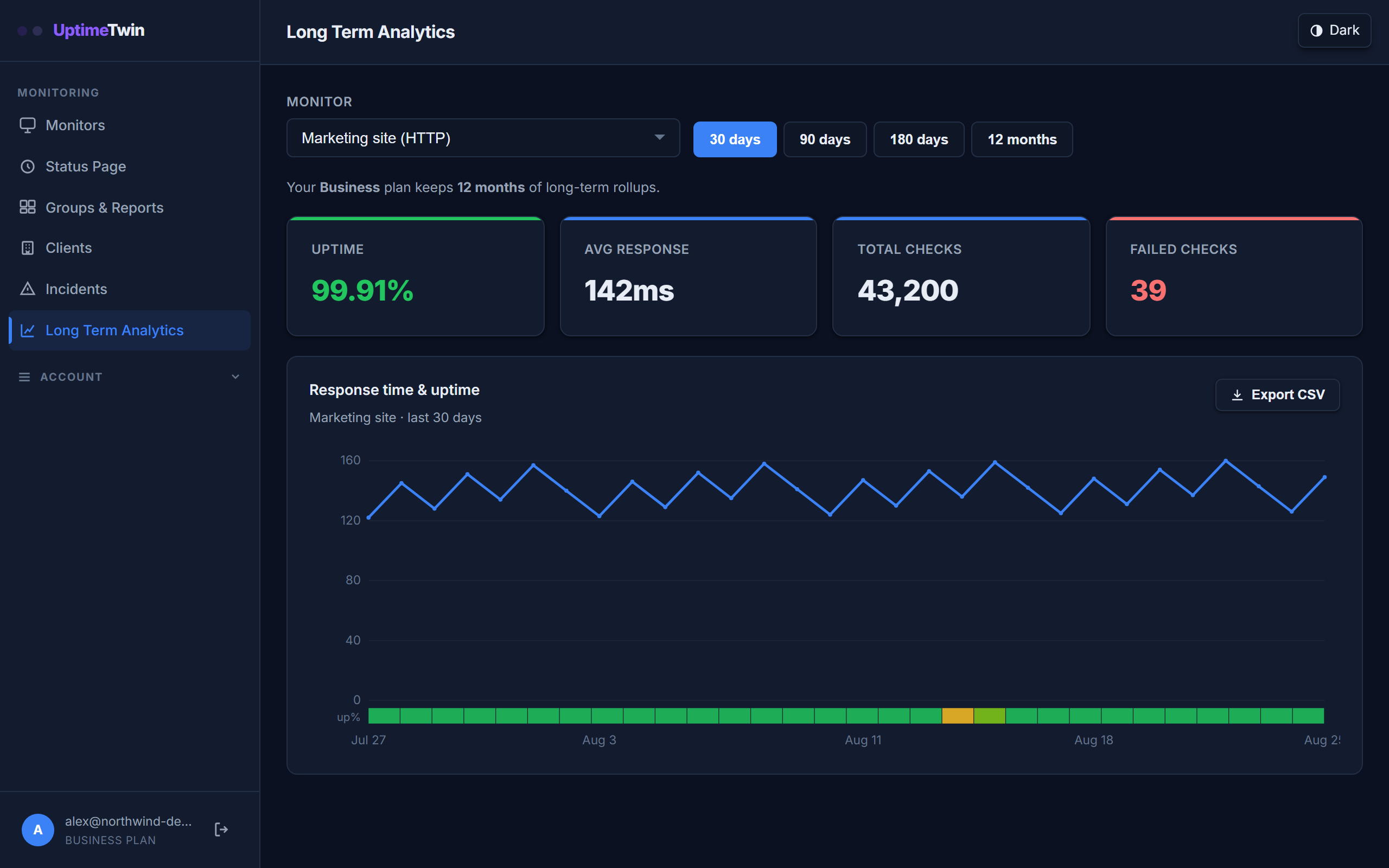 Pick a monitor and a range. The dips are what matter — a single bad day is obvious
here in a way it never is in a list of individual checks.
Pick a monitor and a range. The dips are what matter — a single bad day is obvious
here in a way it never is in a list of individual checks.
What you get
- Long Term Analytics — uptime percentage and average response time for one monitor over a window you pick. On every plan, including Free.
- A performance overview on the dashboard that compares your monitors side by side. On Pro, Business and MSP, and for the first 14 days of a Free or Hobby account.
- A per-check history chart on each monitor's detail panel. The same plans, and the same first 14 days.
How far back it goes
Two different windows are at work, and they have different lengths.
Individual check results — the per-check bars on a monitor, every check with its own response time — are kept for 60 days on Pro and 90 days on Business and MSP. Free accounts don't get the per-check chart. See Plans & limits.
Aggregated history takes over once individual results age out, and it comes at two grains. Per-hour summaries keep the shape of a day — totals, uptime and a count-weighted average response time. Per-day summaries keep the day as a whole — uptime, downtime, incident counts and response-time percentiles — and reach much further back, because one row a day costs a fraction of twenty-four. No individual check is retained in either.
| Plan | Per-hour summaries | Per-day summaries |
|---|---|---|
| Free | 60 days | 60 days |
| Pro | 180 days | 180 days |
| Business | 180 days | 12 months |
| MSP | 180 days | 13 months |
So a Business or MSP chart is hour-by-hour for the first 180 days and day-by-day beyond that. The chart marks where that changes, and long-range reports are built from the per-day summaries.
MSP is 13 months rather than 12 on purpose. At exactly a year, the same month one year ago has just aged out, which is precisely the comparison a year-over-year review needs.
Ranges beyond your plan's window are greyed out rather than returning an empty chart.
These are retention limits — how long data is kept before deletion — not history already collected. Your history builds from your first check and fills the window as your monitors run.
Where each number comes from
A report covering a long range is not all the same kind of data, and it says so. Every chart and report tells you which parts came from individual checks and which from aggregated summaries, and marks where the resolution changes. That boundary matters: a daily average smooths away brief spikes that individual results would show, so a range that quietly switched from one to the other would look like the service settling down when only the data got coarser.
One consequence worth knowing: response-time percentiles over a long range are summarised from each day's percentile. Each day's figure is exact for that day, but percentiles cannot be added together, so the range figure is a summary of typical days rather than the true percentile of the whole period. Reports say this where they show one.
Exporting
Pro, Business and MSP can export to CSV for your own reporting, audits, or SLA reviews.
The export covers the same window the chart is showing, at the same grains: each row
carries a grain column of hour or day, so a whole day summarised into one line is
never mistaken for a single hourly reading.
Get started
Related
Last updated 2026-10-12