Your dashboard
How to read status, response times, and history at a glance.
The dashboard is your home base — every monitor, its current status, and its recent performance in one place.
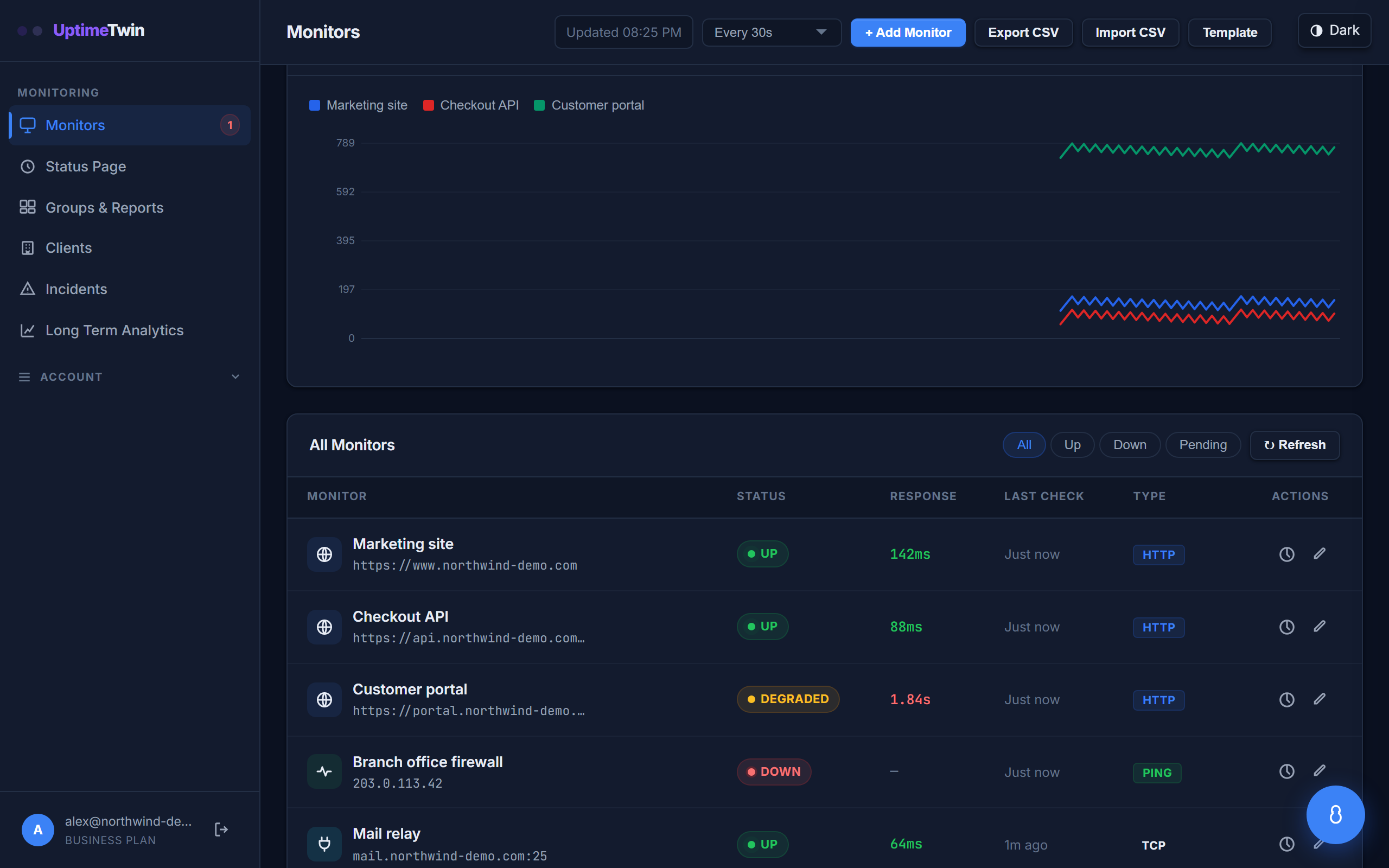 Every monitor on one screen. The status pill is the quick read; response time and
last-check age tell you whether a healthy monitor is drifting.
Every monitor on one screen. The status pill is the quick read; response time and
last-check age tell you whether a healthy monitor is drifting.
Status at a glance
Each monitor shows a colored status:
- Up (green) — the last check passed.
- Down (red) — the last check failed (after your alert threshold was met).
- Degraded (amber) — it's up, but responding much slower than its normal baseline.
- Pending (grey) — it hasn't completed its first check yet.
The summary at the top rolls these up so you can see how many of your monitors are healthy right now.
Response time and history
Click a monitor to open its detail view. You'll see:
- Its current response time and how that's trending.
- An uptime percentage over your selected window.
- A history chart of individual checks, so you can spot patterns and one-off blips.
- Type-specific details — for example, days left until an SSL certificate or domain expires.
Auto-refresh
The dashboard refreshes on its own so you're always looking at current status. You can change how often it refreshes using the control in the header.
Longer-term trends
For response-time trends and uptime history that go back weeks or months, see Analytics & reports.
Get started
Related
Last updated 2026-07-15