Create your first monitor
Go from signup to your first live check in a couple of minutes.
You can have your first monitor running in about two minutes.
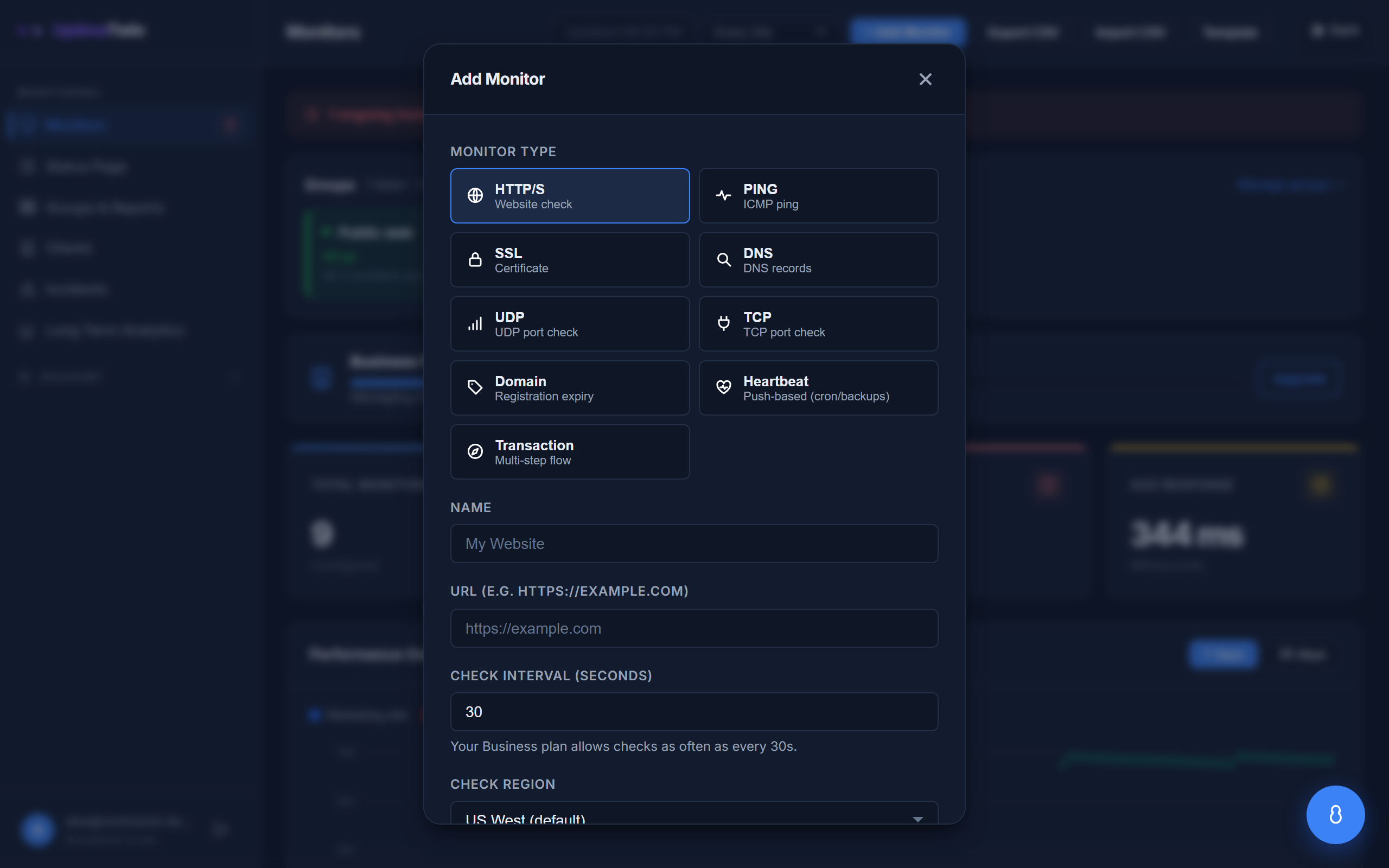 Everything you need for a first monitor is on one screen. HTTP/S is selected by
default, so for a website you only have to fill in a name and a URL.
Everything you need for a first monitor is on one screen. HTTP/S is selected by
default, so for a website you only have to fill in a name and a URL.
Set up your first monitor
-
Sign up and open the Dashboard. Create your account with an email and password, or with Google or GitHub. This is where all your monitors live. With an email and password every free monitor is available straight away; alerts switch on once you click the confirmation link we email you (we never send alerts to an unconfirmed address). Google and GitHub sign-ins are confirmed already.
-
Click Add Monitor and fill in the form:
- Monitor type — for a website, choose HTTP/S. Not sure which to pick? See Monitor types.
- Name — anything that helps you recognize it, like "Marketing site".
- Target — what to check. For an HTTP monitor that's the full URL, e.g.
https://example.com. The form shows the right format for each type. - Check interval — how often we check. Your plan sets how fast you can go; the default is fine to start. See Check intervals.
Then click Add Monitor.
-
Watch it run. Your new monitor appears as Pending until its first check completes, then flips to Up (green) or Down (red). Its latest response time shows right away, and history builds as checks accumulate.
-
Make sure alerts reach you. By default we email alerts to your account address. On Pro, Business or MSP you can add a Slack, Discord, Microsoft Teams, Google Chat or webhook channel alongside it — see notification channels.
Get started
Related
Last updated 2026-10-12