Notification channels
Where your alerts go — email, text messages, phone calls, Slack, Discord, Microsoft Teams, Google Chat, and webhooks.
A notification channel is where your alerts are delivered. Every account gets email to its own address, and can add a mobile number for text alerts (see SMS) and a phone number for alert calls (see Phone calls). Slack, Discord, Microsoft Teams, Google Chat and webhook channels need the Pro, Business or MSP plan.
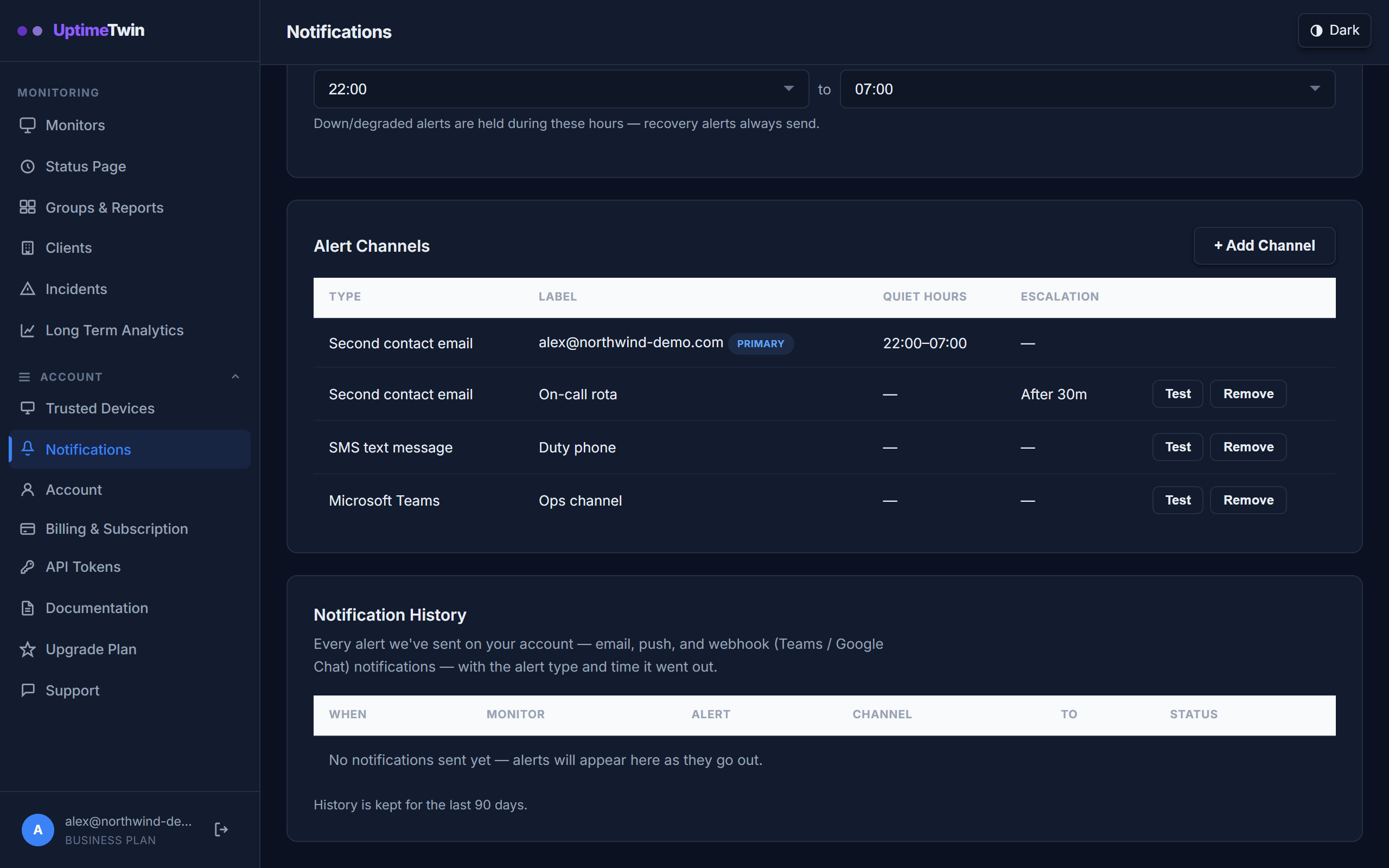 Quiet hours need Pro, Business or MSP. A second contact comes with Business and MSP,
and is a $3 a month add-on on Free, Hobby and Pro. Test sends a real message through
that channel so you find out it works before an outage does.
Quiet hours need Pro, Business or MSP. A second contact comes with Business and MSP,
and is a $3 a month add-on on Free, Hobby and Pro. Test sends a real message through
that channel so you find out it works before an outage does.
Every account gets email alerts out of the box, sent to your account's own address.
If you want the whole team to see them, make that address a shared inbox — something
like [email protected].
Slack
On Pro, Business or MSP, add a Slack channel with an incoming webhook URL. In Slack,
create an app (or open an existing one), enable Incoming Webhooks, and add one to
the channel you want alerts in — the URL starts https://hooks.slack.com/services/.
Alerts arrive colour-coded: red when a monitor goes down, green when it recovers, amber for a slow or expiring one.
Discord
On Pro, Business or MSP, add a Discord channel with a webhook URL. In Discord, open Channel settings → Integrations → Webhooks → New Webhook, then Copy Webhook URL. Alerts are posted as a colour-coded embed in that channel.
Microsoft Teams
On Pro, Business or MSP, add a Microsoft Teams channel with an incoming webhook URL from your Teams channel. We post a formatted message there whenever a monitor changes status.
Google Chat
On Pro, Business or MSP, add a Google Chat channel with a webhook URL from your Chat space, and status changes are posted straight into that space.
Webhooks
On Pro, Business or MSP, add a generic webhook channel to push alerts into anything else you use. A webhook is how you reach a tool we don't have a dedicated channel for — Telegram, Zapier, or your own systems all accept one. When a monitor changes status, we POST a JSON body to your URL so it can post a message or kick off your own automation.
For Slack and Discord, use their own channel types above instead. They send a properly formatted message, where the generic webhook sends the raw JSON that Slack and Discord reject.
A second contact
A second contact is an email address that only hears about an outage nobody has acknowledged. It comes with Business and MSP. On Free, Hobby and Pro it is a $3 a month add-on for one person: under Settings → Notifications, press + Add Channel, choose Second contact (email) and add it from there. You set how long to wait — anything from a minute to a week — and if the incident is still open and unacknowledged when that time is up, the alert goes to them as well. The address has to confirm itself by email before anything is sent to it.
Quiet hours
On Pro, Business or MSP, each channel can have quiet hours, so a channel that shouldn't wake anyone stays silent overnight while the others still fire.
SMS
Every plan can add a mobile number for text alerts, Free included. We can text mobile numbers in these 10 countries:
| Country | Code | Credits per text |
|---|---|---|
| United States | +1 | 1 |
| Canada | +1 | 1 |
| Australia | +61 | 2 |
| India | +91 | 4 |
| France | +33 | 2 |
| Germany | +49 | 2 |
| Netherlands | +31 | 2 |
| Sweden | +46 | 2 |
| United Kingdom | +44 | 2 |
| Mexico | +52 | 4 |
We can't add a number in any other country yet. The number our texts come from depends on the country: a toll-free number in the US and Canada, and a local number or short code elsewhere.
To add one, choose SMS text message under Settings → Notifications, enter
the number with its country code (for example +12025550143) and tick the consent
box. The form shows what each text to that number costs. Then press Send code. We text a six-digit code that expires after 10
minutes, and nothing else goes to that number until you enter it. If you change the
number later, you agree again and confirm the new number with a new code.
You get a text when a monitor goes down or comes back up, responds slowly, or has an SSL certificate or domain close to expiry. A text looks like this:
UptimeTwin: Marketing site is DOWN. Reply STOP to opt out.
Text credits
Each text uses the credits shown for its country in the table above, and that includes the confirmation code. A text to a US or Canadian number uses one credit.
| Plan | Text credits |
|---|---|
| Free | 5, one time |
| Hobby | 5, one time |
| Pro | 25 every 30 days |
| Business | 100 every 30 days |
| MSP | 500 every 30 days |
On Pro, Business and MSP the 30 days start from your first text, and unused credits don't carry over. The five on Free and Hobby don't refill.
When you move to a plan with more texts, your credits go up to the new plan's amount straight away, and the 30 days start again from that day. Moving to a plan with fewer texts doesn't take away credits you already have; the lower amount applies from the next refill.
Two limits apply however many credits you have left: no more than five texts about the same monitor in 24 hours, and no more than three times your plan's allowance in 24 hours across the account. They stop a monitor that keeps going up and down from using up your credits.
When you're out of credits, or a limit is reached, we don't send the text. Your email and any other channels still get the alert, and on Pro, Business and MSP the skipped text shows in your notification history.
Stopping texts
Reply STOP to any of our texts and they stop. We then switch that SMS channel off, and the rest of your account carries on as before. For help, email [email protected]; in the US and Canada you can also reply HELP. Message and data rates may apply.
If text alerts are ever paused on our side, the SMS form in your settings says so, and no credits are used while they are.
Phone calls
Every plan can add a phone number for alert calls, Free included. We call only when a monitor goes down, never for a recovery, a slow response or an expiry notice. We can call mobile and landline numbers in these 9 countries:
| Country | Code | Credits per call |
|---|---|---|
| United States | +1 | 3 |
| Canada | +1 | 3 |
| Australia | +61 | 6 |
| France | +33 | 6 |
| Germany | +49 | 6 |
| Netherlands | +31 | 6 |
| Sweden | +46 | 6 |
| United Kingdom | +44 | 6 |
| Mexico | +52 | 6 |
To add one, go to Settings → Notifications, press + Add Channel and choose
Phone call. Enter the number with its country code (for example +12025550143)
and tick the consent box; the form shows what each call to that number costs. Then
press Call me with a code: we call the number and read out a six-digit code twice.
The code expires after 10 minutes, and no alert calls go to the number until you enter
it. Your account's email address has to be confirmed before we place that call.
Our calls come from +1 408 775 7442. Save it in your contacts, so you know it's us when it rings and so a phone that silences unknown callers still lets it through. If you call that number back, a recorded message says who we are and how to stop the calls; it doesn't reach a person. For help, email [email protected].
An alert call is spoken in a computer voice and sounds like this:
This is UptimeTwin with an alert. Your monitor Marketing site is down. example.com failed 3 checks in a row. Press 1 to acknowledge. Press 9 to stop these calls.
If no key is pressed, we say it once more, then hang up.
- Press 1 to acknowledge the outage. It works like the acknowledge link in the alert email, and the incident shows as acknowledged.
- Press 9 to stop calls to that number. We switch that channel off straight away. To start calls again, remove the number and add it again.
Call credits
Calls use the same credits as texts (see text credits). A call to a US or Canadian number uses three credits and a call to any other country above uses six, and that includes the call that reads out the code. If a call isn't picked up, by you or your voicemail, its credits come back.
Two limits apply however many credits you have left: no more than three calls about the same monitor in 24 hours, and no more than 20 calls across the account in 24 hours (60 on MSP). They're separate from the text limits, so calls never use up the room your texts have, or the other way round.
When you're out of credits, or a limit is reached, we don't call. Your email and any other channels still get the alert.
If alert calls are ever paused on our side, Phone call isn't offered when you add a channel, a test call says so, and no credits are used while they are.
Texts and calls together
A text goes out when a monitor goes down or comes back up, responds slowly, or has a certificate or domain close to expiry; a call, only when a monitor goes down. A setup that works well is both on the same phone: texts for all of it, and a call for the outages you'd want to be woken for. Each has its own channel, so you can remove one without touching the other, and both spend the same credits.
Notification history
On Pro, Business or MSP you can review what we sent and when, so there's always a record of which alerts went out for which monitors.
Don't rely on email on its own
Email is the most convenient channel and the least reliable one — your provider, your spam filter and (on a work address) your company's mail gateway all sit between us and your inbox, and none of them are under our control.
For anything you'd want to be woken up for, pair email with a Slack, Discord, Teams, Google Chat or webhook channel. They all need Pro, Business or MSP, and they post to a URL you supply. A text or a phone call is another good partner for email, on any plan; see SMS and Phone calls for how the credits work. If you're sticking with email, read making sure alert emails reach you first.
Get started
Related
Last updated 2026-10-19