Maintenance windows
Silence alerts during planned work without pausing the monitor.
A maintenance window tells UptimeTwin "expect this to be down for a while — don't alert me." Use it around deployments, upgrades, or any planned work so you don't get paged for an outage you already know about. One-off windows are on every plan, including Free and Hobby; Pro, Business and MSP can also set one to repeat weekly.
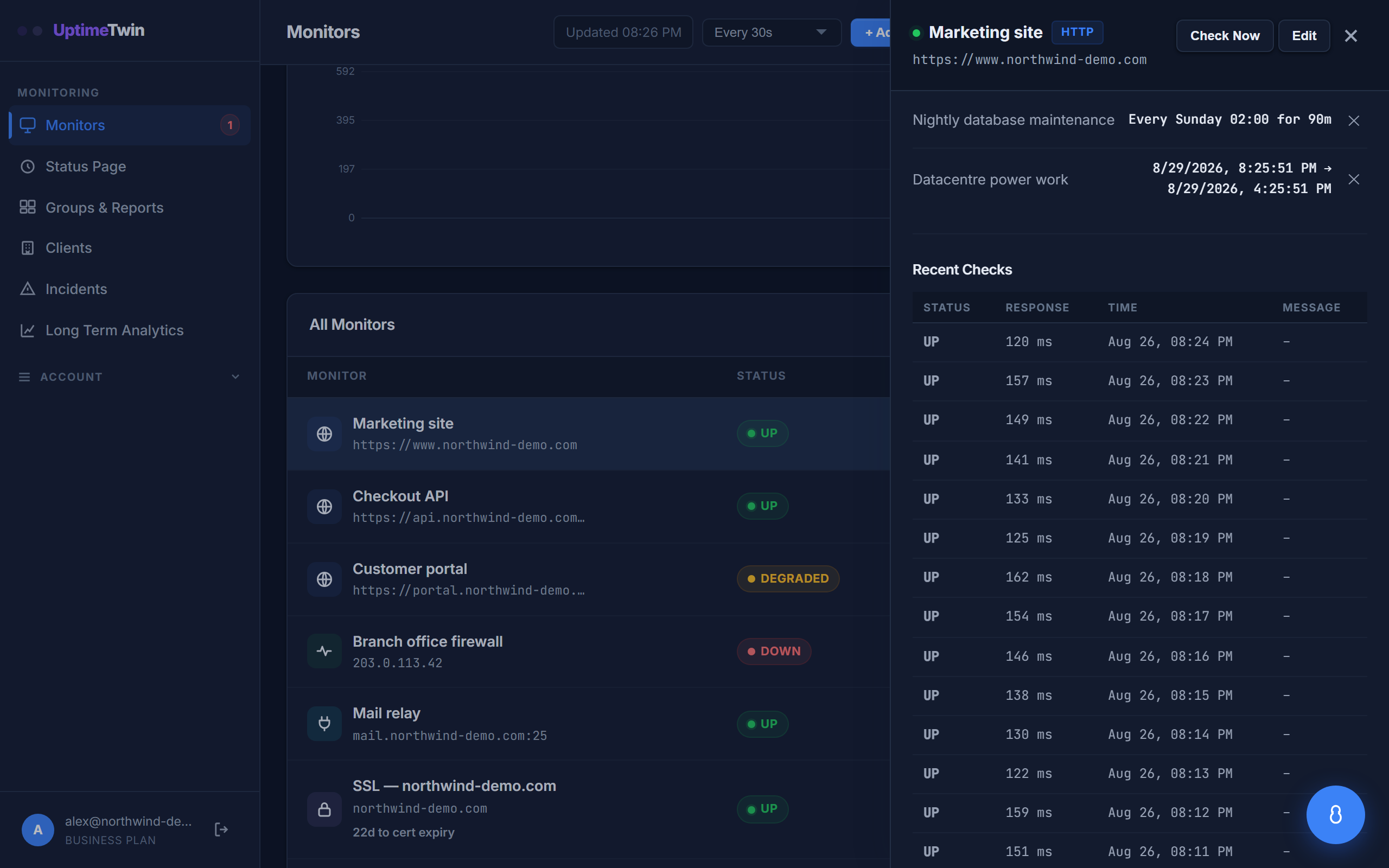 Windows can repeat weekly for regular work, or cover a single date range for a
one-off.
Windows can repeat weekly for regular work, or cover a single date range for a
one-off.
How it works
Schedule a window on a monitor for the time your work will happen. During that window, the monitor keeps checking — so your history and uptime records stay accurate — but alerts are held back. When the window ends, alerting resumes automatically.
Recurring windows
If you have regular maintenance — a weekly restart, a nightly batch job — set the window to recur so you don't have to schedule it every time. A recurring window runs on one day of the week, at a time and for a length you choose, and needs the Pro, Business or MSP plan. One-off windows have no such limit.
If you move to Free or Hobby, your recurring windows are kept but paused, and marked "Paused by plan" on the monitor: alerts go out during them as at any other time. Upgrade and they apply again with nothing to set up.
Why not just pause the monitor?
Pausing stops the checks entirely, leaving a blind spot and a gap in your history. A maintenance window keeps watching and recording; it only mutes the alerts. That way, if something is actually broken after your work, the data's still there.
Get started
Related
Last updated 2026-10-12