Import and export monitors with CSV
Back up all your monitors to a spreadsheet, and add them in bulk from one.
You can download all your monitors as a CSV file, and add monitors in bulk by uploading one. Both are on every plan, including Free.
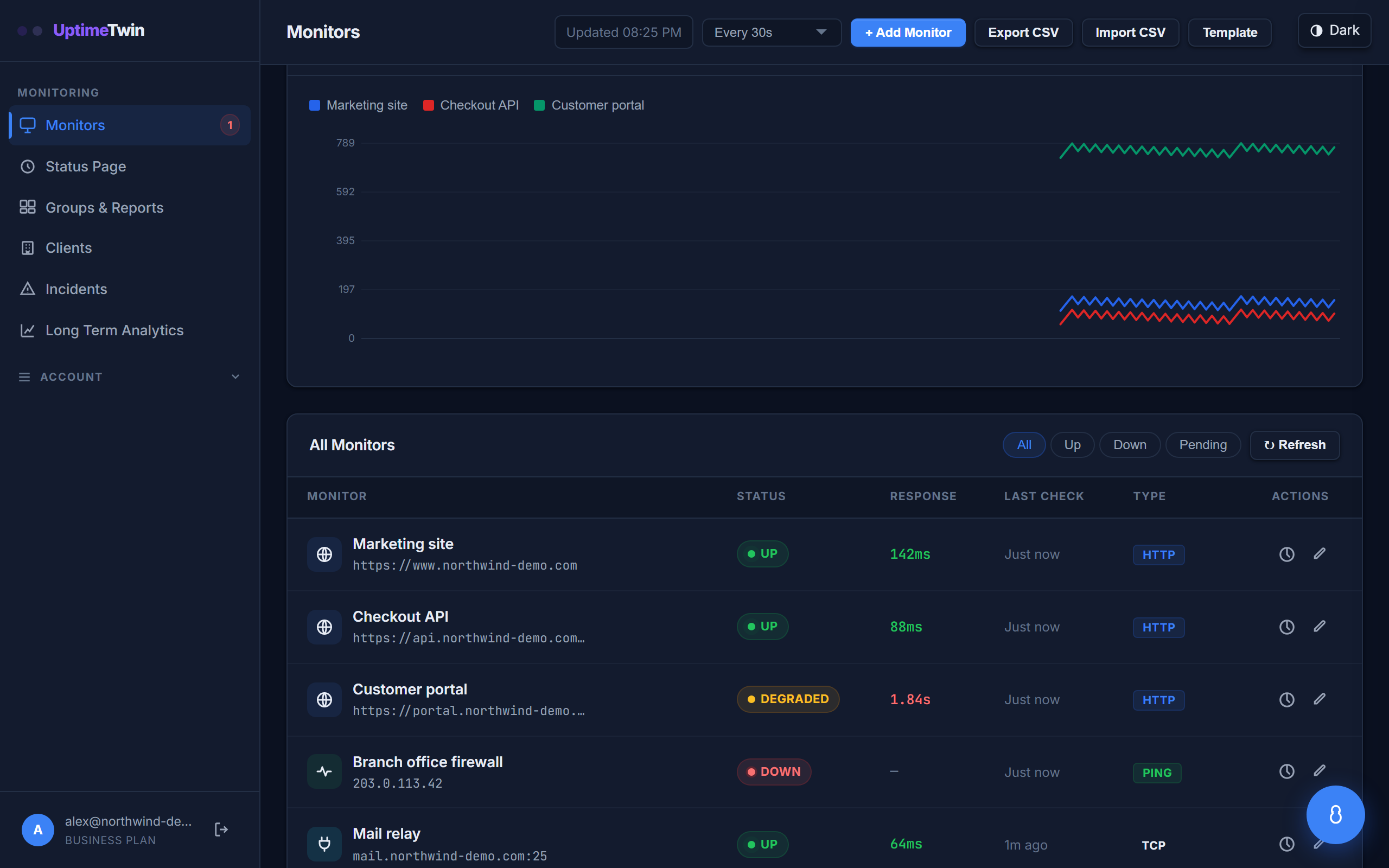 Export CSV and Import CSV sit in the toolbar above your monitor list.
The file you download is the same shape as the file we accept, so exporting and re-importing gets you back what you had. That's the point — treat the export as a backup you can keep. The one exception is a transaction monitor: its steps aren't columns in the file, so it exports as a row but can't be recreated from one.
Exporting your monitors
Go to your dashboard and choose Export CSV. You'll get a file called
something like uptimetwin-monitors-2026-08-07.csv containing every monitor on
your account, paused ones included.
Open it in Excel, Numbers, Google Sheets, or anything else that reads CSV.
Starting from the template
If you don't have any monitors to export yet, choose Template next to
Import CSV. It downloads uptimetwin-monitors-template.csv — a short example
file with the right header row and four filled-in monitors covering the common
shapes: a website, a mail server on a port, a certificate check, and one that's
paused.
Open it, replace the example rows with your own, and import it. The header row is already exactly what the importer expects, so the quickest path is to edit the rows underneath it and leave the top line alone.
The template is generated in your browser, so it works even if you're offline or something's wrong with your connection.
Importing monitors
Choose Import CSV and pick your file. We'll show you what it's going to do before anything is created, so you can check it first.
The only columns you really need are name and type. Everything else is
optional and falls back to your plan's defaults.
name,type,target
Main website,http,https://example.com
Mail server,tcp,mail.example.com:25
Our domain,dns,example.com
Column names aren't fussy about capitals or spaces — Check Interval and
check_interval both work.
All the columns
| Column | What it does |
|---|---|
name | What you'll see in your dashboard. Required. |
type | http, ping, ssl, dns, tcp, udp, domain, or heartbeat. Required. Transaction monitors can't be imported — they need their steps, and the file has no column for those. |
target | The address to check. Required for most types. |
check_interval | Seconds between checks. Falls back to your plan's fastest. |
probe_region | Which region checks it. Pro, Business and MSP only. |
down_threshold | Failed checks in a row before we alert you. |
up_threshold | Successful checks in a row before we call it recovered. |
ssl_warning_days | Days before certificate expiry to start warning. |
ssl_critical_days | Days before expiry to escalate. |
ip_version | auto, ipv4, or ipv6. |
enabled | false to import a monitor paused. Defaults to on. |
If something's wrong with the file
Nothing is imported unless every row is good. If ten rows are fine and one has a typo, we import none of them and tell you which row to fix.
That's deliberate. A half-finished import is worse than none: you'd have no straightforward way to tell which monitors were missing, and running the file again would duplicate the ones that did work.
You'll get the row number and what's wrong with it, so you can fix the file and try again.
Things worth knowing
Your plan limits still apply. If you're on Free with 20 monitors and try to import 10, we'll tell you there's only room for 5 rather than importing some of them. The same goes for monitor types — importing a heartbeat monitor on Free or Hobby won't work, because that type needs the Pro, Business or MSP plan.
We don't import check history. A re-imported monitor starts fresh and builds up history again from its first check. The configuration comes back; the past doesn't.
IDs aren't in the file. Importing always creates new monitors — it never updates existing ones. If you import a file you've already imported, you'll get duplicates.
If a name starts with =, +, - or @, you'll see a ' in front of it
when you open the file in a spreadsheet. That's on purpose: without it,
spreadsheets treat the name as a formula and try to run it. The quote disappears
when you import the file back, so your name is unchanged.
Verify your email first. Like adding monitors by hand, importing needs a verified email address on your account.
Related
- Check intervals — what each plan allows
- Alert thresholds — tuning
down_threshold - Plans and limits — how many monitors you get
Last updated 2026-10-12