Connect Claude
Add UptimeTwin to Claude Desktop so you can manage monitors in a conversation.
Connect UptimeTwin to Claude and you can manage your monitors just by chatting — "is anything down?", "add a check for our new site", "pause staging while we deploy." This page sets up Claude Desktop. You'll need an API token, on any plan (Free includes 300 connector requests in your first 14 days).
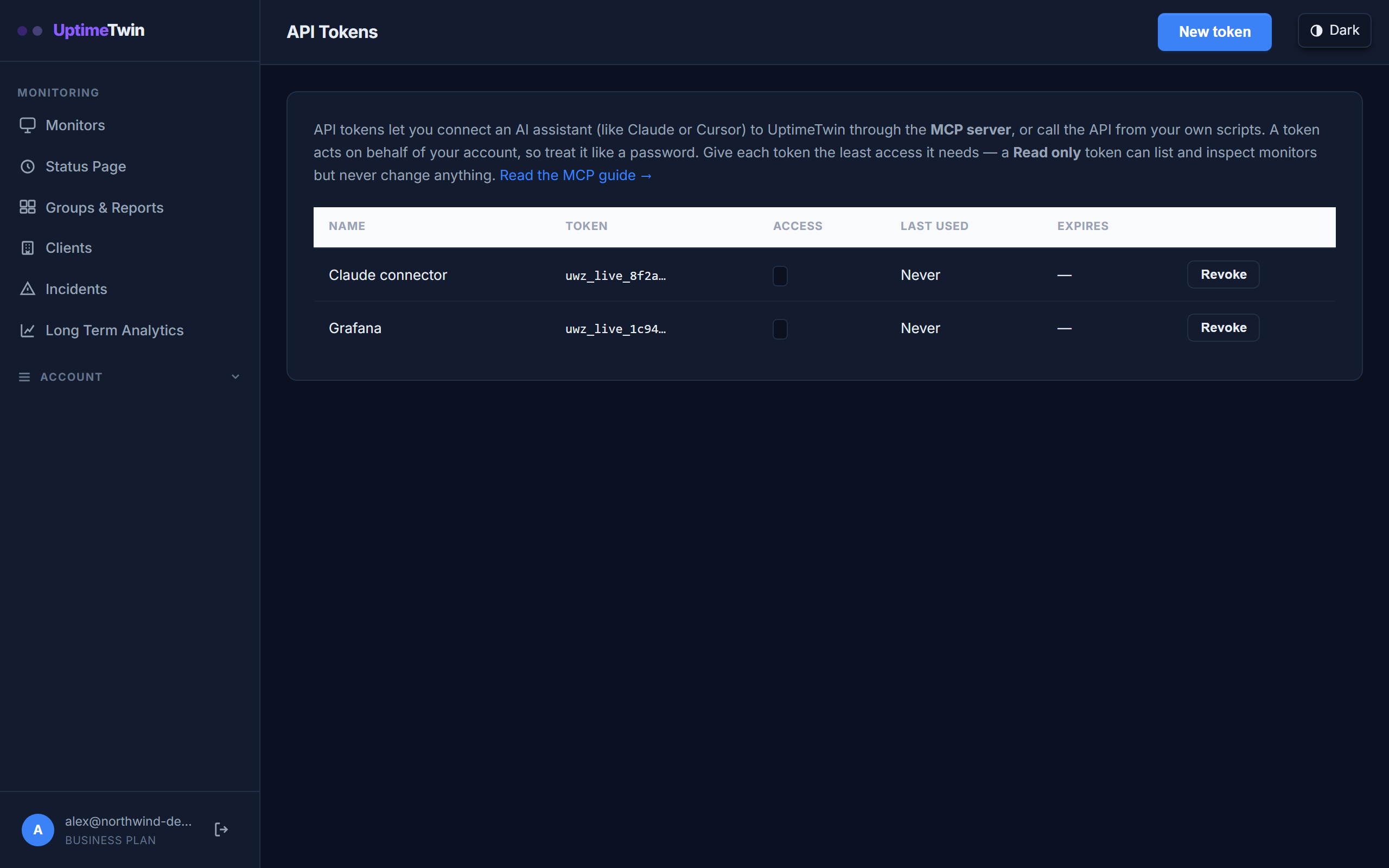 Give the token a name you'll recognise later. The full token is shown once, when
you create it; after that only the prefix, so keep your copy somewhere safe.
Give the token a name you'll recognise later. The full token is shown once, when
you create it; after that only the prefix, so keep your copy somewhere safe.
Before you start
- Create an API token. In the UptimeTwin dashboard's left sidebar, open Account and select API Tokens — here's how. Pick Read & write if you want Claude to make changes, or Read only to keep it look-but-don't-touch.
- Install Node.js if you don't have it. Claude Desktop uses a small helper (
mcp-remote) to reach a hosted connector, and that helper runs on Node.
Add the connector
-
Open Claude Desktop's own settings and go to Developer → Edit Config. On macOS, Settings is in the Claude menu in the menu bar. On Windows, it's in the menu at the top left of the Claude window (File → Settings).
-
Edit Config creates
claude_desktop_config.jsonif it doesn't exist yet and takes you to it. Open the file in a text editor such as Notepad or TextEdit. It's normally at:- Windows:
%APPDATA%\Claude\claude_desktop_config.json - macOS:
~/Library/Application Support/Claude/claude_desktop_config.json
- Windows:
-
Look for a section called
mcpServers. A new Claude Desktop install usually doesn't have one: the file may be empty, contain only{}, or contain only Claude Desktop's own settings. Claude Desktop only loads connectors listed undermcpServers, so add it to match what you find:- The file is empty or contains only
{}: replace everything in it with the block below. - The file has other settings but no
mcpServers: keep what's there. Put a comma after the last existing setting, then paste everything from"mcpServers"down to its matching closing brace from the block below, just before the file's last}. - The file already has
mcpServers: add only the"uptimetwin": { ... }entry inside it, with a comma between it and any entry already there.
Paste your token where shown:
{
  "mcpServers": {
    "uptimetwin": {
      "command": "npx",
      "args": [
        "-y",
        "mcp-remote",
        "https://api.uptimetwin.com/api/mcp",
        "--header",
        "Authorization:${UW_TOKEN}"
      ],
      "env": {
        "UW_TOKEN": "Bearer uwk_live_your_token_here"
      }
    }
  }
}
Keep
Bearerin front of your token. (The token goes inenvrather than directly in the header because Claude Desktop splits the header on spaces otherwise.) - The file is empty or contains only
-
Save the file. It has to be valid JSON: one missing comma or brace and Claude Desktop won't load any connector from it.
-
Fully quit Claude Desktop, then reopen it. Closing the window isn't enough.
-
In a new chat, select the button at the bottom left of the message box (Add files, connectors, and more) and open Connectors. "uptimetwin" should be listed. Ask "list my monitors" to confirm it's working.
If uptimetwin doesn't appear
- Check the file first.
mcpServersmust be spelled exactly like that, capital S included, and must sit at the top level of the file, not inside another setting. A code editor such as VS Code underlines a missing comma or brace. Don't paste the file into an online JSON checker: it contains your token. - Check Node.js. Run
node --versionin a terminal. If the command isn't found, install Node.js and restart Claude Desktop. - Read the log. Claude Desktop writes connector logs to
%APPDATA%\Claude\logson Windows and~/Library/Logs/Claudeon macOS.mcp-server-uptimetwin.logshows what the helper reported. - A
401in the log means the token was rejected: see If it won't connect for what to check and how to test the token from a terminal.
Try it
Once connected, ask Claude things like:
- "Which of my monitors are down right now?"
- "Add an HTTP monitor for https://acme.com, checked every minute."
- "What incidents happened this week?"
- "Pause the staging monitor."
Claude will only ever act on your own account, and it can't delete monitors — see what the connector can do.
A note on one-click connectors
Claude's built-in "add a custom connector" uses a one-click sign-in that we're still finishing. Until it's ready, use the setup above — it gives you the same connector today.
Get started
Related
Last updated 2026-09-17