API tokens
Create and manage the tokens that let Claude, Cursor, or your scripts sign in to your account.
An API token is how an outside tool — the UptimeTwin connector, or your own script — signs in to your account without your password. You create one in the dashboard, give it a name, choose how much access it has, and paste it into the tool you're connecting. API tokens are available on every plan. On the Free plan the connector includes 300 requests during the account's first 14 days.
Treat a token like a password: anyone who has it can act on your monitors within the access you gave it.
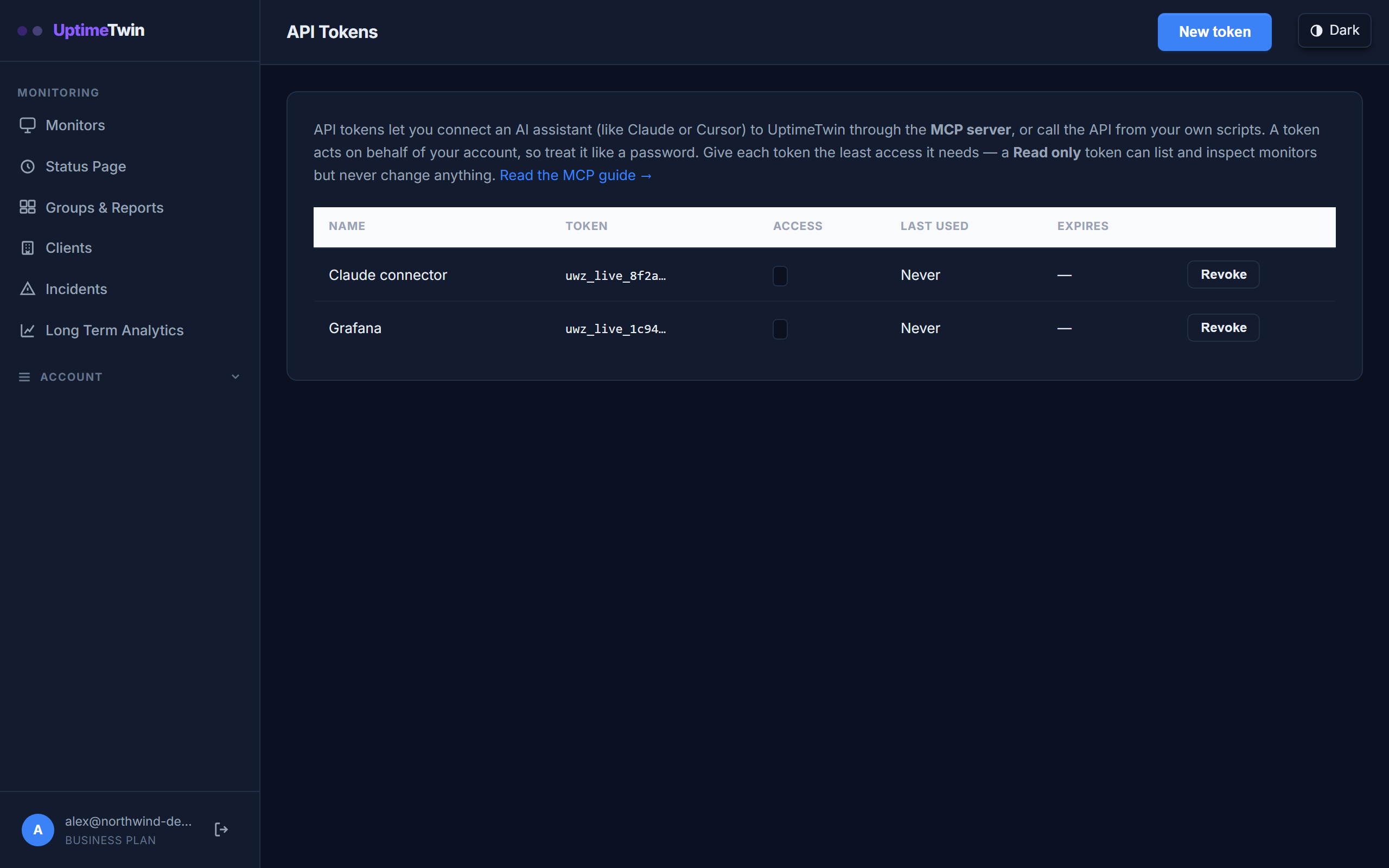 Only a short prefix of each token is ever shown again after you create it. The
last-used column is the quickest way to spot one you can safely revoke.
Only a short prefix of each token is ever shown again after you create it. The
last-used column is the quickest way to spot one you can safely revoke.
Access levels
When you create a token you pick one:
- Read only — can list and inspect your monitors and incidents, but can't change anything. Good for dashboards, reports, or "just tell me what's happening" assistants.
- Read & write — can also add, edit, pause, and resume monitors. Use this when you want your assistant to make changes for you.
No token can delete a monitor. Deleting is always done by you in the dashboard.
Expiry
You can set a token to expire after 30 days, 90 days, a year, or never. A shorter expiry is safer — the token stops working on its own if you forget about it. You can always create a new one.
Find the API Tokens page
In the dashboard's left sidebar, select Account to open that menu (it starts closed), then select API Tokens.
Create a token
- In the left sidebar, open Account and select API Tokens.
- Select New token.
- Give it a name you'll recognize later — for example, "Claude Desktop" or "Status report script".
- Choose the access level: Read only or Read & write.
- Choose when it expires (or No expiry).
- Select Create token.
- Select Copy and store the token somewhere safe. It's hidden on screen by default; select Show if you need to read it. This is the only time it's available — if you lose it, revoke it and create a new one.
Revoke a token
If a token is no longer needed — or you think it may have leaked — revoke it. Any tool using it stops working immediately.
- In the left sidebar, open Account and select API Tokens.
- Find the token in the list (each shows its name, first few characters, and when it was last used).
- Select Revoke, and confirm.
Get started
Related
Last updated 2026-09-17